To find your public IP address, use a reputable IP-check website in the browser on the connection you want to test. To find your device’s local IP address, open its active network connection details in Settings or use a built-in network command.
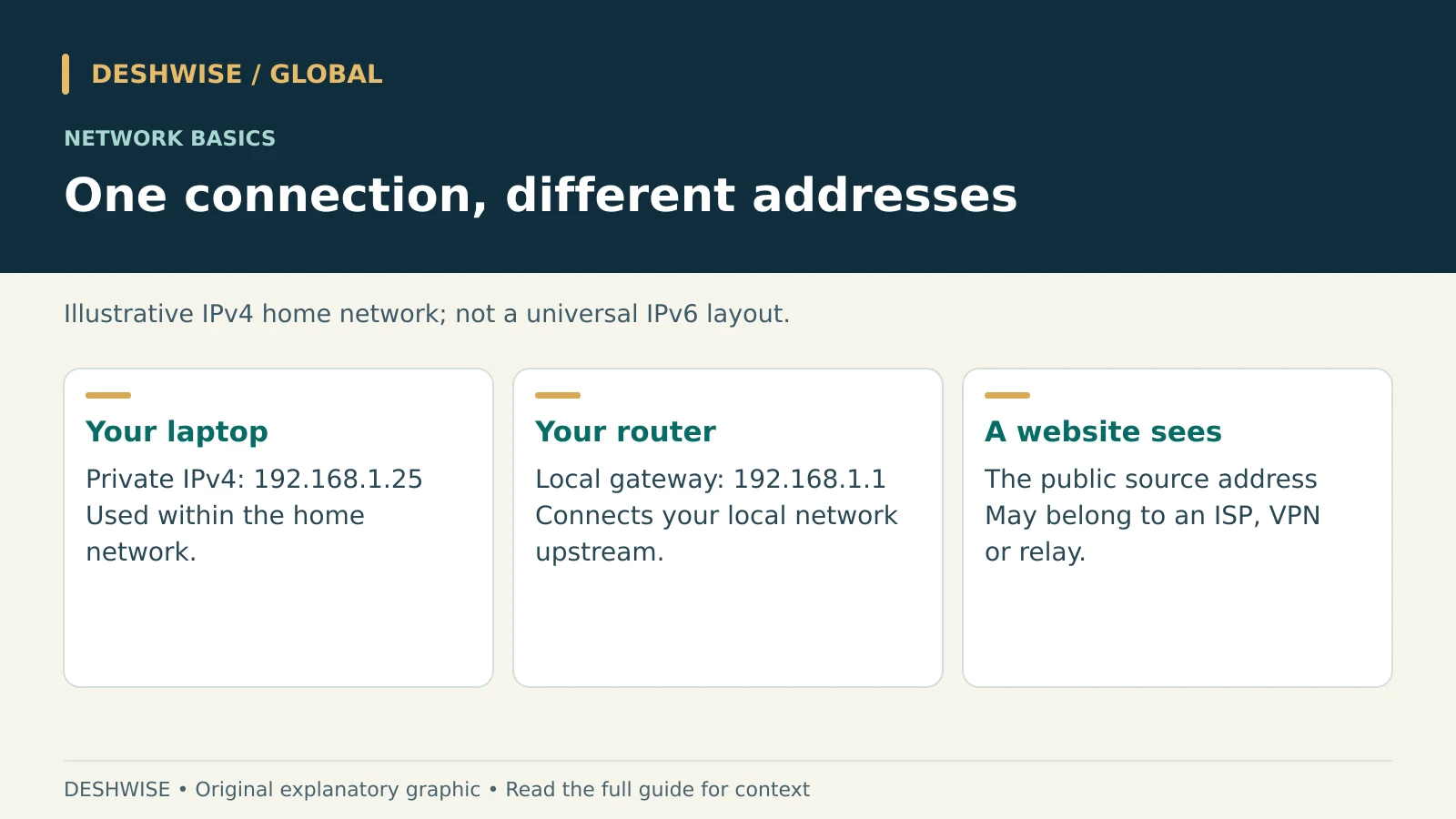
Those results may differ, and both can be correct. Your laptop can have a local address used inside your home while a website sees a different address associated with your internet connection, VPN, or privacy relay.
Start by asking what you need the address for. Connecting a printer usually involves a local address; checking what a website sees involves a public one. That distinction prevents most beginner mistakes.
Key Takeaways
- Public and private IP addresses describe different network roles.
- Check the active adapter; disconnected, virtual, and VPN adapters can produce confusing results.
- IPv4 and IPv6 can operate together, so finding several addresses is normal.
- Incognito mode does not hide your public IP address.
- A VPN changes the address websites see for traffic routed through it, but does not make you anonymous.
Understand the address you need
An IP address helps networks deliver traffic to the appropriate interface. It identifies a network endpoint, not necessarily one permanent person or device. Addresses can change, and several users may share a public IPv4 address.
| Address or setting | What it identifies | Typical use |
|---|---|---|
| Device’s private IPv4 | A device interface inside a local network | Connecting to a printer or local service |
| Public IP | The internet-facing source seen on a connection | Checking a VPN or giving details to your ISP |
| Router/default gateway | The next router your device uses | Opening your own router’s settings |
| DNS server | A service that resolves domain names | Troubleshooting website-name lookup |
| MAC address | A link-layer interface identifier | Local network administration |
Common private IPv4 ranges are 10.0.0.0–10.255.255.255, 172.16.0.0–172.31.255.255, and 192.168.0.0–192.168.255.255. Do not assume every address starting with 172 is private.
For example, your laptop might use 192.168.1.25, while your router uses 192.168.1.1. These illustrative local addresses can appear in many unrelated homes because they are not globally unique internet destinations.
Find your public IP in a browser
- Connect to the Wi-Fi, Ethernet, or mobile connection you want to check.
- Open a reputable IP-check service or search for “what is my IP.” Search engines do not always show a direct answer, so use a suitable result if needed.
- Read whether the displayed address is IPv4 or IPv6.
- Note whether a VPN, proxy, or privacy relay is enabled.
No extension, software download, account, or payment is necessary for a basic lookup. A page asking you to install a “network repair” application is unnecessary for this task.
The result is the address that particular service sees for your browser connection. It may be a VPN exit address rather than the ISP address. Services that support only one protocol may display different results from a dual-stack checker.
Do not type 192.168.1.1 into a search engine expecting your public IP. That address is a common router address, not a universal internet identity. Also avoid posting full screenshots of network dashboards in public support forums.
Find a Windows IP address
Use Windows Settings
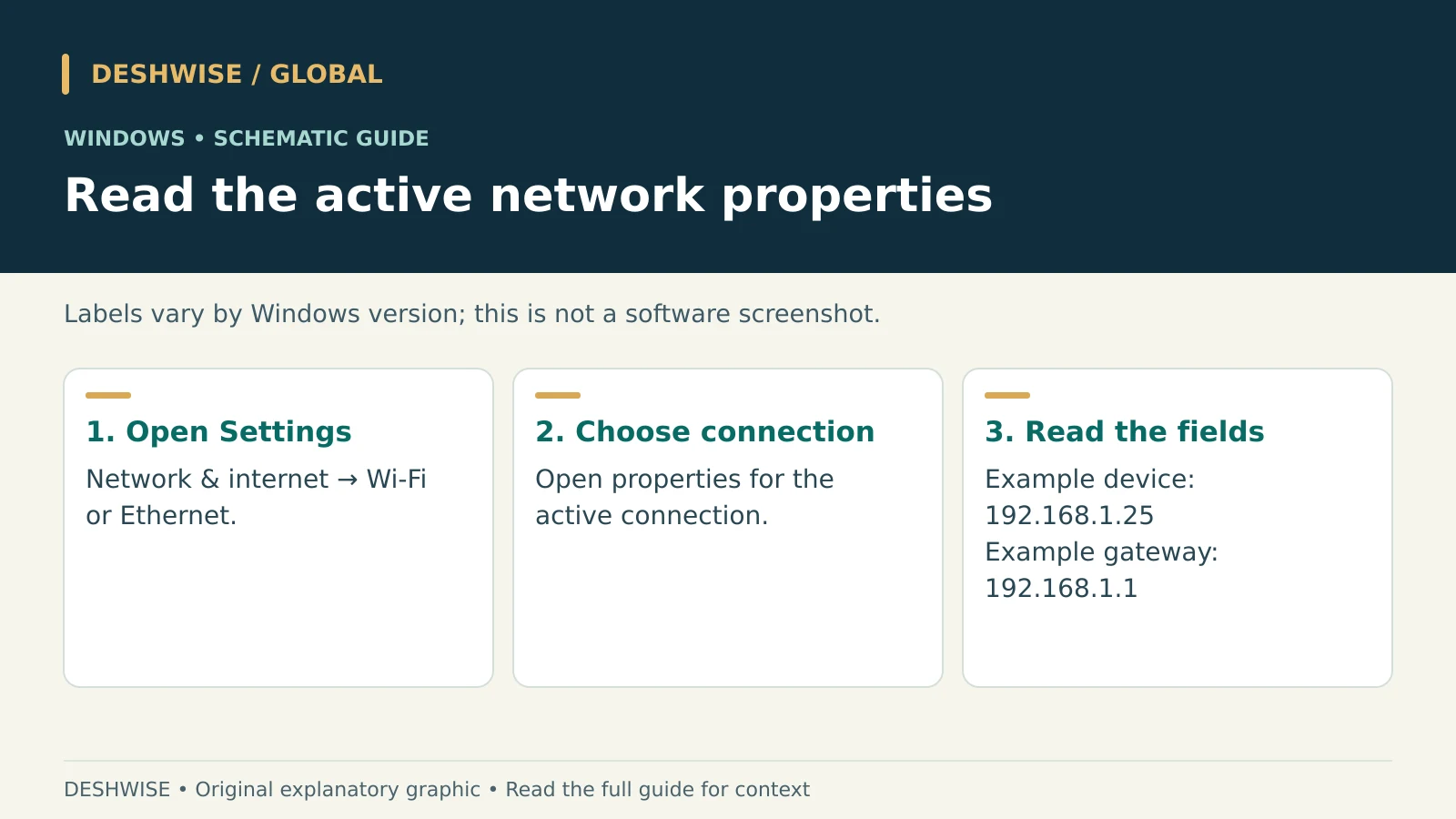
On Windows 11, open Settings → Network & internet. Select Wi-Fi, then the connected network’s properties; for a cable connection, select Ethernet and its properties. Look for IPv4 address and, where available, IPv6 information.
On Windows 10, the path is broadly Settings → Network & Internet → Wi-Fi or Ethernet → connected network → Properties. Labels can vary with updates, device management, and the installed version. Search Settings for “network properties” if necessary.
Use Command Prompt or Terminal
Open Command Prompt or a Windows Terminal Command Prompt tab and run:
ipconfig
Under the active Wi-Fi or Ethernet adapter, read IPv4 Address. Default Gateway usually identifies the local router. Use this for more complete details if support asks:
ipconfig /all
Ignore “Media disconnected” entries. An address under a VPN or virtual-machine adapter may serve a different network. Do not run release, reset, or configuration-changing commands just to inspect an address; the basic command is read-only.
Find a Mac IP address
On current macOS versions, open Apple menu → System Settings → Network. Select the connected service, open Details, and look under TCP/IP for the address and router. Wi-Fi details may also be accessible through the Wi-Fi section directly.
Older macOS releases use System Preferences → Network. The active connection’s status or Advanced/TCP/IP area contains the relevant details. Apple’s TCP/IP documentation is useful if your interface differs.
For a command-line view, open Terminal and run:
ifconfig
Look for inet and inet6 on the active interface. Ignore the loopback interface when finding an address for another local device to reach. 127.0.0.1 refers back to your own computer.
Avoid assuming Wi-Fi is always en0; hardware and service ordering vary. The graphical connection details are usually easier for beginners because they show which service is actually connected.
Find a Linux IP address
On Ubuntu and similar desktop environments, open Settings → Network or Wi-Fi, then the gear or details button beside the active connection. Read its IPv4 and IPv6 entries. Other distributions may use a different network manager.
In a terminal, inspect interfaces with:
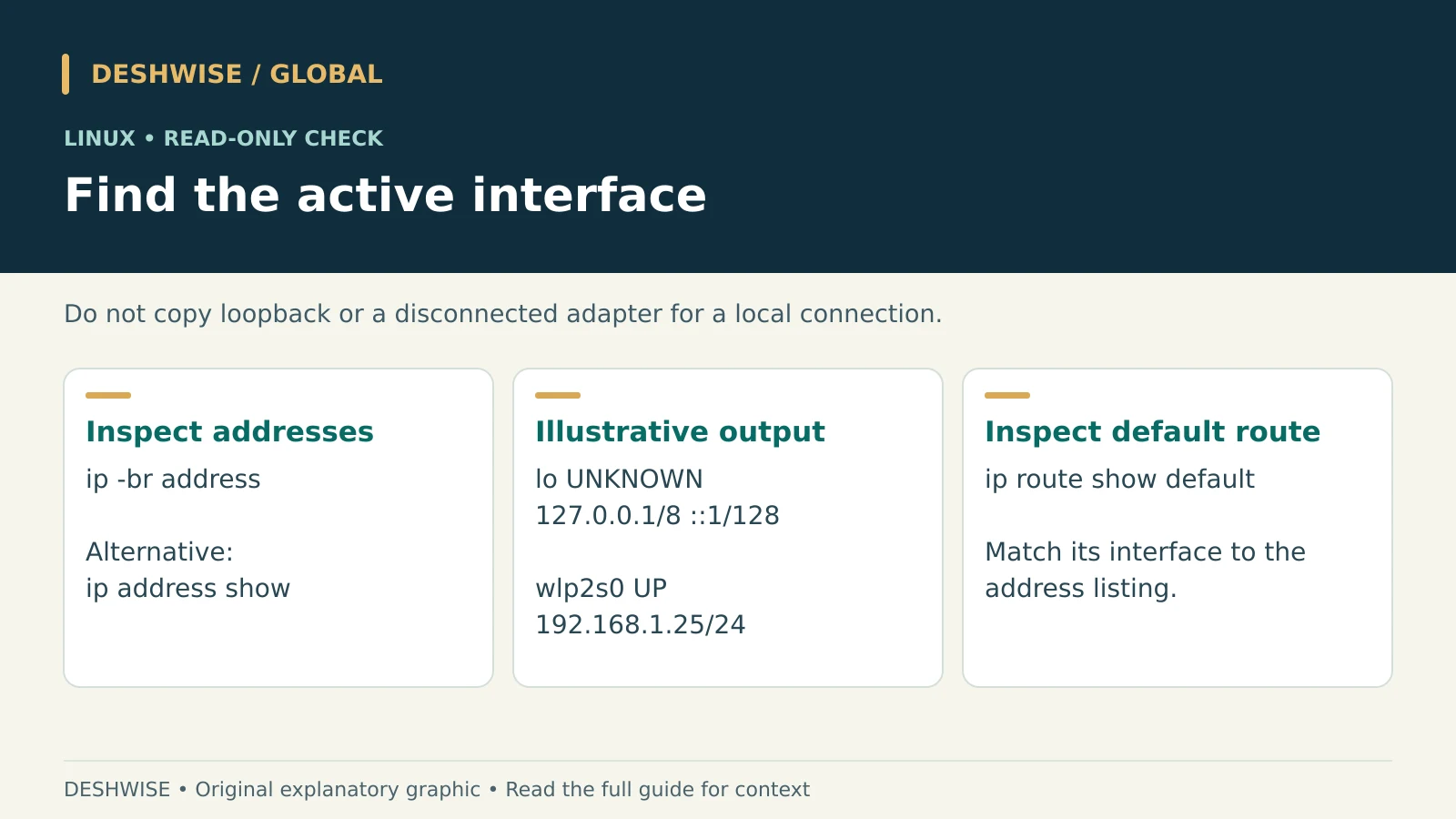
ip -br address
If the brief option is unavailable, use:
ip address show
To inspect routing, use:
ip route show default
The interface named in a default route is a useful clue, but multiple routes, policy routing, and VPNs can complicate the picture. Match the interface with its address rather than copying the first line.
lo is loopback. Wired interfaces may have names such as enp3s0; Wi-Fi interfaces may use names such as wlp2s0. Docker bridges and VPN tunnels can add more entries. Several addresses do not automatically indicate a fault.
Some minimal Linux installations omit the ip utility or a graphical network manager. Consult your distribution’s official documentation instead of installing a random “IP finder” package. Administrative privileges are usually unnecessary for these inspection commands.
Find your Android or iPhone IP address
Android
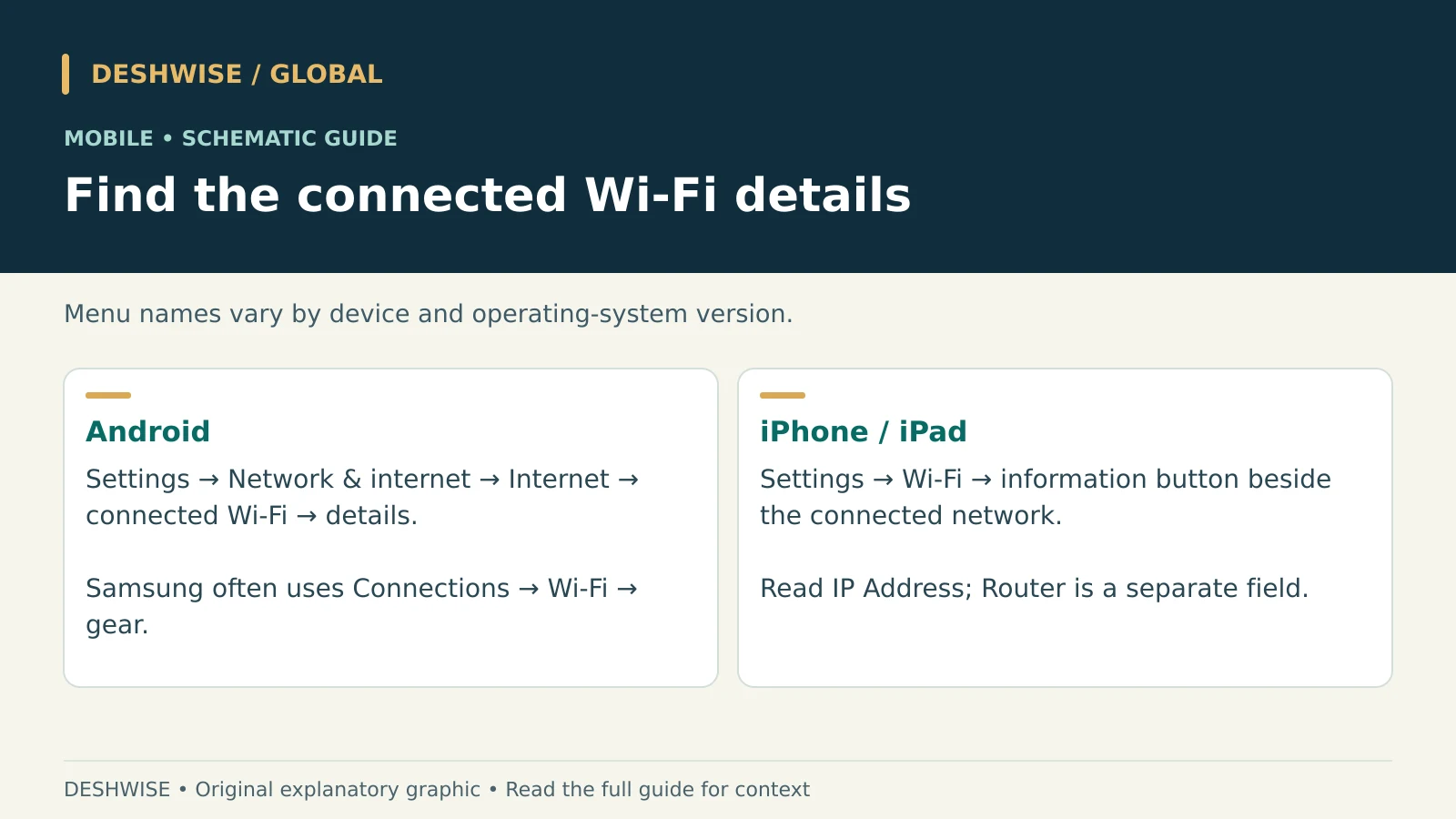
On many Android phones, use Settings → Network & internet → Internet → connected Wi-Fi network → network details. The IP address may be under an expanded Advanced section.
Samsung devices commonly use Settings → Connections → Wi-Fi → gear beside the connected network → View more. Other brands change the labels. Searching Settings for “IP address” or opening the active Wi-Fi connection details can help.
Confirm that you are reading an IP address, not the randomized MAC address. They serve different purposes. Keep the IP setting on DHCP unless you deliberately need an administrator-approved static configuration.
iPhone and iPad
Open Settings → Wi-Fi, then tap the information button beside the connected network. Look for IP Address under the IPv4 details and any IPv6 entries. The Router field is separate.
When using cellular data, a browser lookup is the simplest way to see the public address used for browsing. The Wi-Fi details screen does not describe the mobile-data connection after Wi-Fi is disconnected.
Apple’s Private Wi-Fi Address feature concerns the MAC address used on that network. It is different from iCloud Private Relay, which affects supported internet traffic. Turning one setting on does not mean every application’s public IP is hidden.
Find your router IP address
For your router’s local management address, read Default Gateway on Windows, Router on Apple devices, or the gateway in your Linux route details. Android network details may also show it.
Enter that exact address into your browser’s address bar while connected to your own network, following the router maker’s instructions. Some routers use an official management app or a documented hostname instead.
Only sign in to routers you own or are authorized to manage. Use official documentation and do not enter administrator credentials into a search result or advertisement pretending to be a login page.
Inside the router, a WAN, Internet, or Status page may show its upstream address. If that differs from the public browser result, your ISP may use carrier-grade NAT, or you may have another router upstream. A private-looking WAN address is a clue, not a complete diagnosis.
The shared address range 100.64.0.0/10 can indicate carrier-grade NAT. This affects inbound connectivity and port forwarding. Ask the ISP about requirements rather than changing random firewall settings or exposing the management interface to the internet.
Understand IPv4 vs IPv6
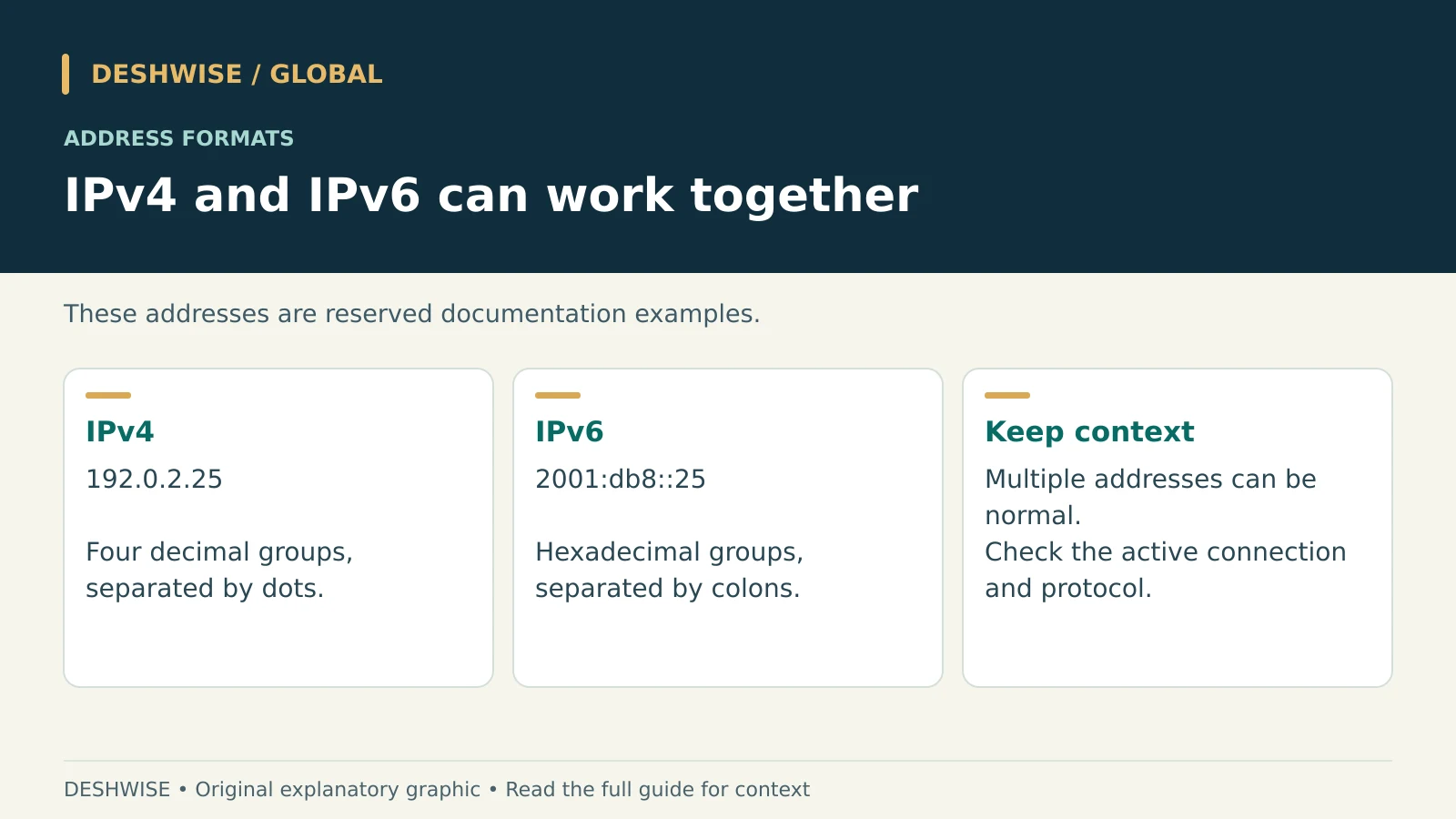
IPv4 uses four decimal groups, such as the documentation example 192.0.2.25. IPv6 uses hexadecimal groups separated by colons, such as 2001:db8::25. These examples are reserved for documentation, not addresses to configure on your device.
An IPv6 interface may have a link-local address beginning with fe80, plus one or more other addresses. A link-local address works only on its local link and may require an interface identifier when used in tools.
Global IPv6 addresses do not necessarily pass through the same address-sharing arrangement as private IPv4. A firewall still matters; having a public address does not itself mean unsolicited inbound access is permitted.
You do not need to disable IPv6 to make the results simpler. Instead, record which protocol the support task requires. If a VPN is involved, verify its handling of both IPv4 and IPv6 rather than assuming protection from one displayed result.
Change or hide an IP address
Changing your local address and changing your public address are separate actions. Choose the action that solves the actual problem.
| Goal | Possible approach | Important limitation |
|---|---|---|
| Obtain a different local address | Reconnect or renew DHCP through supported settings | The same address may be reassigned |
| Keep a device’s local address stable | Router DHCP reservation | Requires authorized router access |
| Change internet connection | Switch between trusted Wi-Fi and mobile data | Data charges and network policies apply |
| Change ISP public address | Ask the ISP about dynamic or static addressing | Restarting a router does not guarantee a change |
| Mask the address seen by websites | Use a reputable VPN for that traffic | Provider trust, configuration and scope matter |
| Protect supported Safari browsing | Use eligible iCloud Private Relay settings | It is not a device-wide VPN and availability varies |
Incognito or private browsing mainly limits locally retained browsing information. It does not replace your network address. Changing DNS servers also does not normally change the public IP websites see.
A VPN can route traffic through an exit server, but websites can still recognize signed-in accounts, cookies, and other signals. Your ISP can generally see that you are connecting to a VPN, and trust shifts toward the provider. Avoid promises of complete anonymity.
Follow local law, workplace rules, and service terms. Do not use address changes to bypass access restrictions on a network you do not administer.
Troubleshoot surprising results
An address beginning 169.254 on IPv4: this can indicate automatic link-local addressing when normal DHCP configuration failed. Check the connection and router, then use the operating system’s network diagnostics. A VPN or managed network can require a different investigation.
Two devices show the same public IPv4: that is normal behind many home routers and ISP sharing systems. Their local addresses should still be appropriate for the network.
The location shown is wrong: IP geolocation is approximate. It may reflect an ISP gateway, VPN server, or outdated database rather than your home. It does not prove that someone has accessed your device.
The result changes between checks: confirm that you stayed on the same network and used the same protocol and VPN state. Mobile networks, privacy features, and reconnects can change routing or addresses.
When contacting support, provide the address type, connection type, device, time, and precise symptom through a private support channel. Never send a Wi-Fi password or router administrator password with an IP screenshot. Record the result privately before changing networks so you can compare checks made under the same conditions later.
Finding an address is an inspection task, not a reason to change security settings. Save the method that matches your device, and explore more practical technology explainers on DESHWISE Global.
Frequently asked questions
Can I find my IP address without an app?
Yes. Use built-in network settings for local addresses and a reputable browser-based checker for the public address seen by that service.
Is my IP address the same as my router’s?
Your device usually has a different local address from the router. Websites may see the public IPv4 shared by devices through the router and ISP.
Why does my phone show a different IP on mobile data?
Mobile data uses your carrier’s network rather than your home connection. The address and address-sharing arrangement can therefore differ.
Does incognito hide my IP address?
No. Private browsing does not by itself change or conceal the public address used for your connection.
Can someone find my exact home from my IP?
Public geolocation tools generally provide approximate network location, not a reliable street address. Providers may hold subscriber records; that is a separate matter.
Will restarting my router change my public IP?
Not necessarily. Your ISP may reassign the same address or provide a static address. Restarting also interrupts connected devices.
Should I share my IP address with technical support?
Only with a trusted support provider when relevant. Share through a private channel and remove passwords, account details, and unnecessary network information.
Sources and further reading
Reference pages checked during preparation on 17 October 2026. Follow current manufacturer instructions and local professional guidance where relevant.
- Microsoft: Essential network settings and tasks in Windows — Windows Settings paths.
- Microsoft Learn: ipconfig — command output and available options.
- Apple: Use DHCP or a manual IP address on Mac — Network and TCP/IP settings.
- Ubuntu: Find your IP address — desktop connection details.
- Ubuntu Server: Configuring networks — interfaces and the ip utility.
- TP-Link: Find your IP address on any device — manufacturer reference for mobile and computer connection details; some screenshots show older OS versions.
- Apple: About iCloud Private Relay — Safari protection and regional limitations.
- Cloudflare: What is a VPN? — VPN concepts; distinguish tunnel encryption from end-to-end HTTPS.
- IETF RFC 1918 and RFC 6598 — private IPv4 and shared address space.